
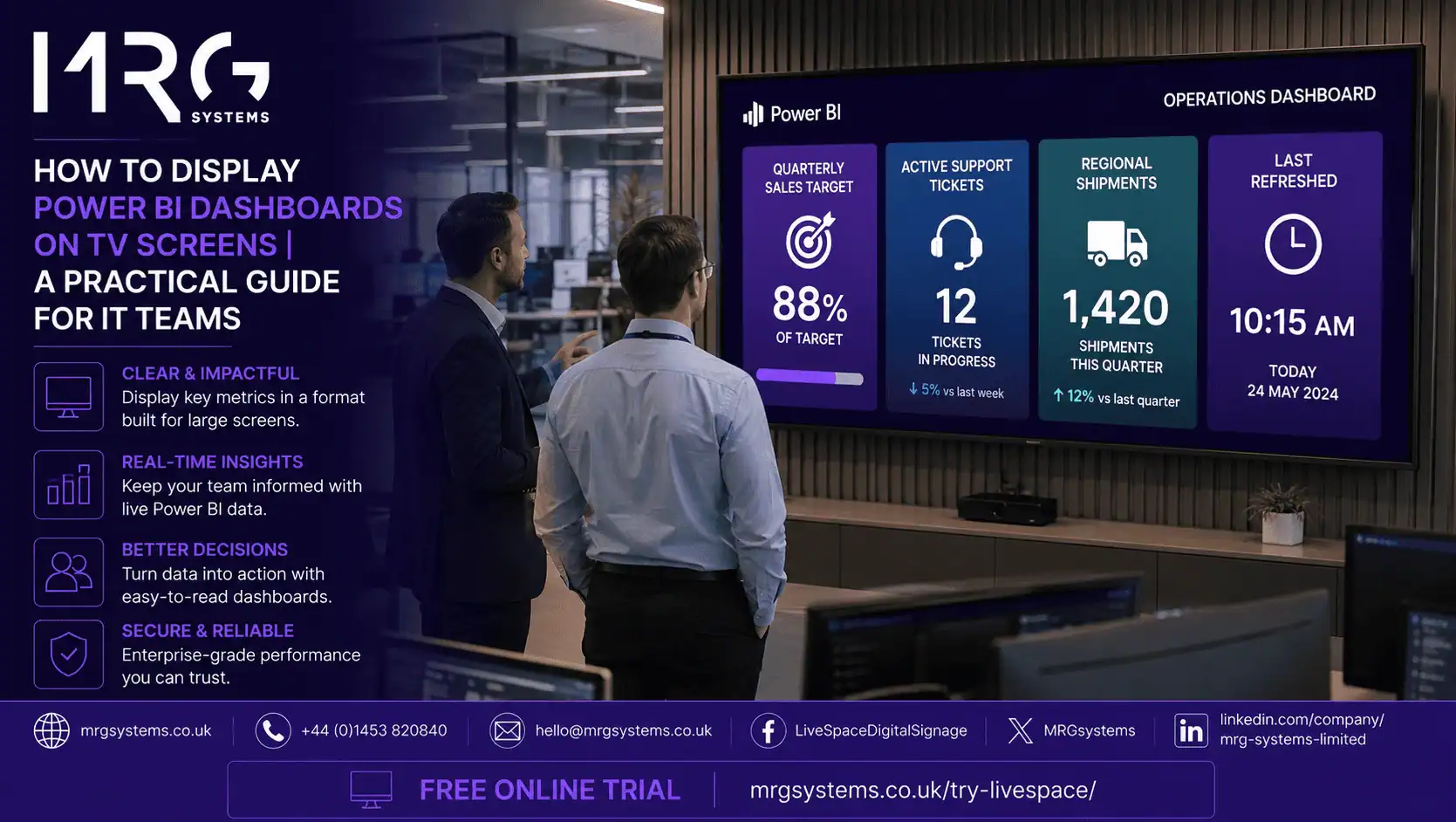
Showing a Power BI dashboard on TV screens is one of the most common requests IT teams receive from sales, operations and finance. The good news is that it is not difficult. The bad news is that the quick way (plugging a laptop into a TV and leaving a browser open) creates security, refresh and maintenance problems within a week. This guide walks through the practical options, from a simple single screen to a managed rollout across several offices, and explains what to consider around authentication, data refresh, screen control and hardware.
MRG Systems installs and supports screen based systems for UK organisations, and Power BI is now the most common data source we are asked to put on a wall. The advice below is written for IT teams who will have to keep the screens running long after the project is finished.
A small Windows or Linux PC sits behind the TV. It signs into the Power BI service in a browser, opens the report in full screen, and stays there. Most browsers support a kiosk mode that hides the address bar and prevents users from closing the window.
This is the cheapest option for a single screen and it works. The problems appear at scale. Every device needs Windows updates, browser updates, a stored credential, a way to reboot after power loss, and someone to notice when the session times out and the screen shows a login page. For one screen in the IT office this is fine. For twelve screens across three sites it becomes a support burden.
Power BI can generate a public embed link for a report. Paste that link into almost any display device and the report appears. This is simple, but Microsoft is clear that publish to web is intended for public data only. Anyone with the link can view the report, and links can be indexed by search engines. For internal KPIs, customer figures or financial data, this option should not be used, and many organisations disable it at tenant level for that reason.
This is the option most IT teams settle on once they have more than a couple of screens. A commercial media player is attached to each TV, and a cloud based digital signage platform manages every player centrally. The platform signs into Power BI on behalf of a service account, displays the chosen report or dashboard, handles the session so that it does not expire, and lets you schedule the report alongside other content.
Digital signage software also solves the operational side: you can see which screens are online, push a change to all of them at once, group screens by site, and restart a player remotely. For IT teams, this turns wall screens from a nuisance into a managed service.
Need to put Power BI on more than one screen? Fill in the enquiry form and our team will walk you through the options and show you a live example.
Whatever route you choose, the screen needs to sign into Power BI somehow, and the choice affects both security and reliability.
• A dedicated service account for the screens is the usual approach. Give it the minimum access needed and use a strong password stored in the signage platform, not on a sticky note behind the TV.
• Row level security (RLS) applies to that account like any other user. This is useful: the same report can be shown in different departments, and each screen only shows the rows its account is allowed to see.
• Conditional access and multi factor authentication policies may need an exception or a specific configuration for the service account. Plan this with the identity team before installation day, not on it.
• Session expiry is the most common cause of a screen showing a login page. Good Corporate Office digital signage programs handle token refresh so that the report stays visible for weeks without intervention.
A dashboard on a wall creates an expectation that the numbers are current. It is worth understanding the limits.
• Import mode datasets refresh on a schedule. On a Power BI Pro licence, scheduled refresh is limited to eight times a day; on Premium or Fabric capacity it can be up to forty eight times a day.
• DirectQuery and live connection reports query the source each time they load, so they can be closer to real time, and automatic page refresh can be enabled on DirectQuery reports, with shorter intervals available on Premium capacity.
• The display layer also needs to reload the report. A screen that loads the report once and never reloads will show stale figures even if the dataset has refreshed. Make sure the signage platform reloads the report on a sensible interval.
Always show the last refresh time on the report. It avoids awkward questions about why the sales figure on the wall is different from the one in the CRM.
A report built for a 14 inch laptop will look cramped and unreadable on a 55 inch TV viewed from four metres. A few simple rules help.
• Create a separate report page for wall display. Use a 16:9 page size and remove filters, slicers and anything that needs a mouse.
• Use large card visuals for the headline numbers. Three to six cards per page is enough.
• Increase font sizes well beyond what feels natural on a laptop. Test it on the real screen.
• Use strong contrast. Light grey text on white disappears under office lighting.
• If you need several views, use separate pages and let the signage platform rotate through them, rather than cramming everything onto one page.
• Screen: a commercial display rated for at least sixteen hours a day is the safe choice. Domestic TVs can work in offices but often lack the brightness and warranty terms needed for daily use.
• Media player: choose a device designed for continuous operation with a small footprint and remote management. Many commercial screens have a built in system on chip player that avoids a separate box.
• Network: wired Ethernet is more reliable than Wi Fi for screens that must stay online. Where cabling is not possible, a strong wireless connection with a static IP is the next best thing.
• Mounting and power: plan the mount, the cable route and the power socket before the install. Trailing cables in a corridor are a safety issue and look poor.
Once screens are installed in several locations, central management stops being a nice to have. Digital signage cloud software provides:
• A single console showing the status of every screen and player.
• Screen groups, so that the Manchester sales office and the Bristol sales office see the same report while the finance team sees a different one.
• Scheduling, so that a Power BI dashboard on TV screens is shown during working hours and a welcome message or company news is shown at other times.
• Remote restart and content push, so nobody has to travel to a site to fix a screen.
• Audit logs showing who changed what, which matters in regulated sectors.
Managing screens across more than one site? Complete the short form and we will send you a written proposal covering players, screens, the cloud platform, installation and ongoing support.
1. Confirm which reports will be shown and which workspace they live in.
2. Create the service account and agree its permissions with the Power BI admin.
3. Confirm refresh schedules and licence type for each dataset.
4. Build a wall display version of each report and test it on a real TV.
5. Choose the display approach: kiosk PC for one screen, digital signage software for several.
6. Plan power, network and mounting for every location.
7. Agree who owns the screens after go live, and how issues will be reported.
Yes. A commercial media player or a screen with a built in player, managed by a cloud based digital signage platform, can display Power BI reports without a full PC. This is usually more reliable and easier to manage.
No. Publish to web creates a public link that anyone can open. It is designed for data you would be happy to see on a public website. Use a signed in approach, such as digital signage software with a service account, for internal reports.
It depends on the dataset refresh schedule, the report type (import or DirectQuery) and how often the display reloads the report. Import datasets on a Pro licence refresh up to eight times a day. DirectQuery reports can be much closer to live. Always show the last refresh time on the screen.
The service account used by the screen needs the appropriate Power BI licence for the workspace and report it is viewing. Check the licensing terms for your tenant with your Microsoft partner or administrator, as they vary by capacity type.
Yes. Most digital signage programs can schedule Power BI alongside notices, video, web pages, and other dashboards, so one screen can serve several purposes during the day.
A good media player continues to show the last loaded content and reconnects automatically. The figures will be stale until the connection returns, so the last refresh time on screen is important.
Putting a Power BI dashboard on TV screens is a small project with a large effect on how visible your data becomes. Do it properly the first time: use a signed in approach rather than public links, build reports for the screen size, choose hardware that will run all day, and manage the screens centrally. IT teams that follow those rules find that wall screens become one of the most appreciated things they deliver.
Talk to MRG Systems about a managed Power BI screen rollout. Fill in the form below and we will get back to you within one working day.