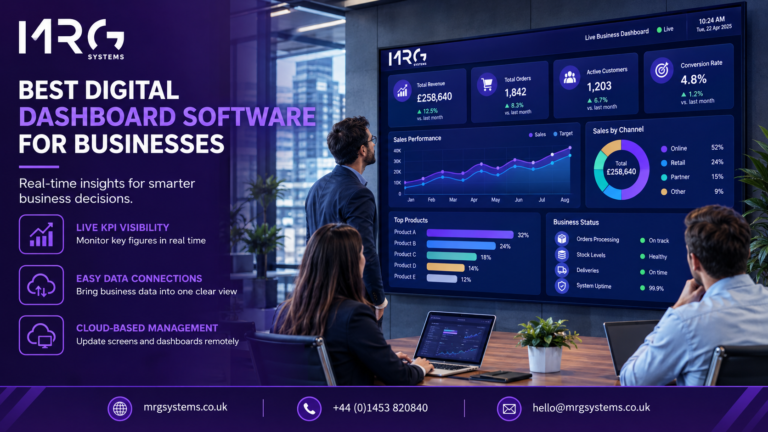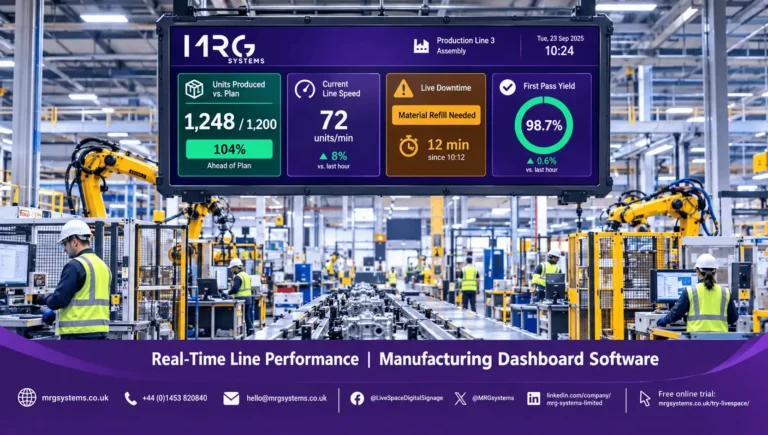


Power BI is often where an organisation’s best reporting already lives, yet the people who would benefit most from it rarely open it. A report that nobody visits does not change decisions. Putting a Power BI dashboard on TV screens in the places where teams work is one of the simplest ways to bring that reporting into daily conversation, and it does not require a new analytics project.
This guide is written for IT teams who have been asked to make it happen. It covers the main ways to display Power BI on a TV, the practical issues that cause screens to fail, and the design and security points worth settling before you start. Each section assumes that you want a Power BI dashboard on TV screens that runs every day without someone standing next to it.
Talk to us early. If you are at the planning stage, you are welcome to describe your set up through the enquiry form on the MRG Systems Contact Us page, and the team will help you think through the options.
A dashboard on a screen is visible without anyone having to log in, find the right workspace or remember to look. Sales teams can see the day’s orders, operations teams can see queues and backlogs, and leadership can see headline measures as they walk past. The data does not change, but the number of people who see it, and how often, does. A Power BI dashboard on TV screens also gives managers a regular view of performance without calling a meeting.
The request usually arrives from a business owner who has seen a screen in another office. The practical question for IT is how to deliver it reliably, with sensible security, and without creating a support burden.
The simplest approach is to open the report or dashboard in a web browser on a device connected to the TV, and use Power BI’s full screen mode, which hides the menus and fills the display. It is quick, costs very little and is a good way to prove the idea with a pilot screen. Press the escape key to leave full screen mode.
The weakness is reliability. Someone must sign in, the session may eventually expire, and if the device restarts, the screen shows a login page or a blank browser until somebody intervenes. That is acceptable for a trial of a Power BI dashboard on TV screens, but not for a permanent installation.
A small PC or media player connected to the TV can be set to start automatically, open the report in a browser in kiosk mode, and recover after a power cut. This removes the need for anyone to touch the screen. Plan for how the device will sign in securely, how the session is kept active, and who is responsible when it stops working. Consumer streaming sticks and smart TV browsers can work for a trial, but they are rarely the best choice for a screen that must run every day.
Digital signage software is built to run screens unattended, schedule what appears on them and report on their status. With a cloud based digital signage platform, you can see which screens are online and push changes remotely instead of visiting each one. Some digital signage cloud software can also show web pages and combine them with other content in a playlist, although support for reports that need authentication, such as Power BI, varies between products. Ask any supplier exactly how it handles sign in and session renewal before you commit. The MRG Systems team can advise on the right route for your set up.
Display management software also brings practical benefits for a Power BI dashboard on TV screens. Digital signage software can restart a failed player, schedule the report for office hours and show a fallback message if the report cannot load. A cloud based digital signage platform adds remote monitoring, so that IT can see at a glance which screens are online and fix a fault without a site visit. Digital signage cloud software also keeps a central record of what is on each display, which helps with audits and change control. If you plan more than two or three screens, a cloud based digital signage platform is usually easier to support than a collection of separate devices, and digital signage cloud software lets you add screens without rebuilding the set up. When you assess digital signage software for this purpose, ask for a live demonstration of a Power BI dashboard on TV screens, including what happens after a restart.
Whichever option you choose, the following checks save most of the problems that appear later.
The two most common faults are stale data and a screen that has logged itself out. Stale data usually comes from the dataset rather than the display: if the underlying data is only refreshed once a day, the screen will only be as current as that. Check the refresh schedule in Power BI, and ask whether options such as automatic page refresh or a live connection are available on your licence and capacity.
Sign in problems arise because sessions are designed to expire. Plan for this in advance, by choosing a method that renews the session, or by using software that monitors the screen and alerts you when it shows a login page. Microsoft’s documentation changes over time, so confirm current behaviour and limits with Microsoft or your licensing partner rather than relying on older guides. A reliable Power BI dashboard on TV screens depends on both, so test them before launch.
Talk it through with a specialist. If you would like help choosing hardware and software for a reliable reporting screen, you are welcome to complete the enquiry form on the MRG Systems Contact Us page.
A report built for a laptop is rarely right for a wall screen. People view a TV from several metres away, so the design needs to be simpler.
If you want to show several pages, remember that Power BI displays one report at a time. Rotating between reports needs a browser tool or display software that can cycle through pages on a timer. A Power BI dashboard on TV screens is read from a distance, so simple is better.
Showing a Power BI dashboard on TV screens in a shared or public area means the data is visible to anyone who can see the screen. Think about who walks past it. Reception areas and open floors may not be the right place for payroll or customer level data. Never use the public sharing feature to simplify a display, because it makes the report accessible to anyone with the link.
Licensing is the other point to settle early. Requirements depend on how your Power BI environment is set up, on whether content sits in a capacity that allows wider viewing, and on the terms Microsoft applies at the time. Ask your Microsoft partner or administrator to confirm what is needed for a display account before you buy hardware.
Where reliability matters, choose digital signage software with remote monitoring, running on a cloud based digital signage platform so that IT can manage every screen from one place. Digital signage cloud software also makes it easy to add the next screen.
Plan a pilot screen. If you are considering a Power BI dashboard on TV screens and would like to talk about the options, use the enquiry form on the Contact Us page and the MRG Systems team will get in touch.
A Power BI dashboard on TV screens works reliably when the report is designed for distance, the access and licensing are agreed in advance, and someone is responsible for keeping the screen running. A pilot with one display is the quickest way to find the real issues before you extend to others.
Book a conversation with IT specialists. If you would like a second opinion on hardware, sign in methods or security before you commit, send your questions through the enquiry form on the Contact Us page.
Yes. You can connect a TV to a computer or media player, open the report in a browser and use full screen mode, or use display software to manage the screen. The reliable route depends on how many screens you need and how closely they must be managed.
You need a TV or commercial display, a device that can run a web browser such as a small PC or media player, and a dependable network connection. For permanent screens, a device that restarts automatically after a power cut is worth having.
Sessions are designed to expire, so there is no single switch. Use a method that renews the session, set the device to reopen the report after a restart, and monitor the screen so that someone is alerted if it shows a login page. Check current guidance from Microsoft.
There are two parts: the dataset must refresh in Power BI, and the page on screen must update. Set a refresh schedule for the data and ask whether automatic page refresh or a live connection is available on your licence. Capabilities differ between plans.
It is a viewing mode that hides the menus and fills the display with the report or dashboard, which makes it suitable for TVs. You can leave it by pressing the escape key.
Not within Power BI alone, which shows one report at a time. You can use a browser extension or display software that cycles through pages or reports on a timer.
It depends on your Power BI set up and Microsoft’s current terms. Ask your administrator or Microsoft partner to confirm what is required for the account that will drive the display, and whether a shared account is permitted.
Only if everyone who can see the screen is allowed to see that data. Limit what the display account can access, avoid sensitive measures in shared spaces, and do not use public sharing links as a shortcut.
Yes, but each screen needs a device and a sign in method, so management becomes more important as the number grows. Display management software helps by letting you monitor and update screens from one place.
You can use a kiosk mode browser on a dedicated device, display management software that supports web content, or an export of key figures into a purpose built display. The best option depends on how reliable and how secure the screen needs to be.
Speak to the team. To discuss putting a Power BI dashboard on TV screens in your organisation, call MRG Systems on 01453 820840, email hello@mrgsystems.co.uk or complete the enquiry form on the Contact Us page.