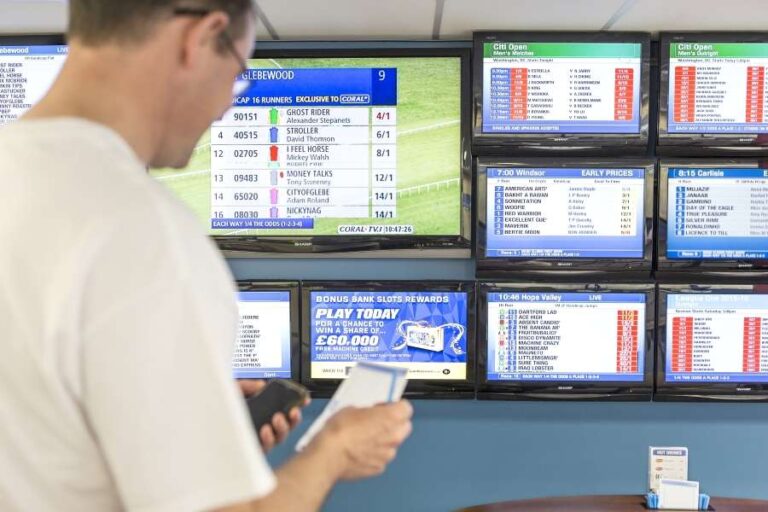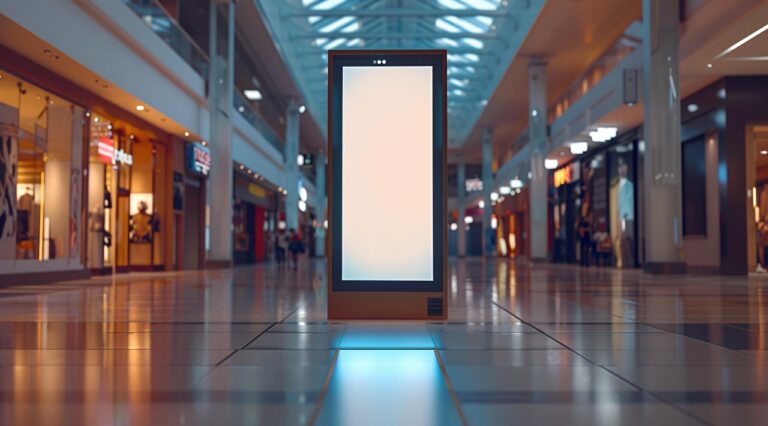
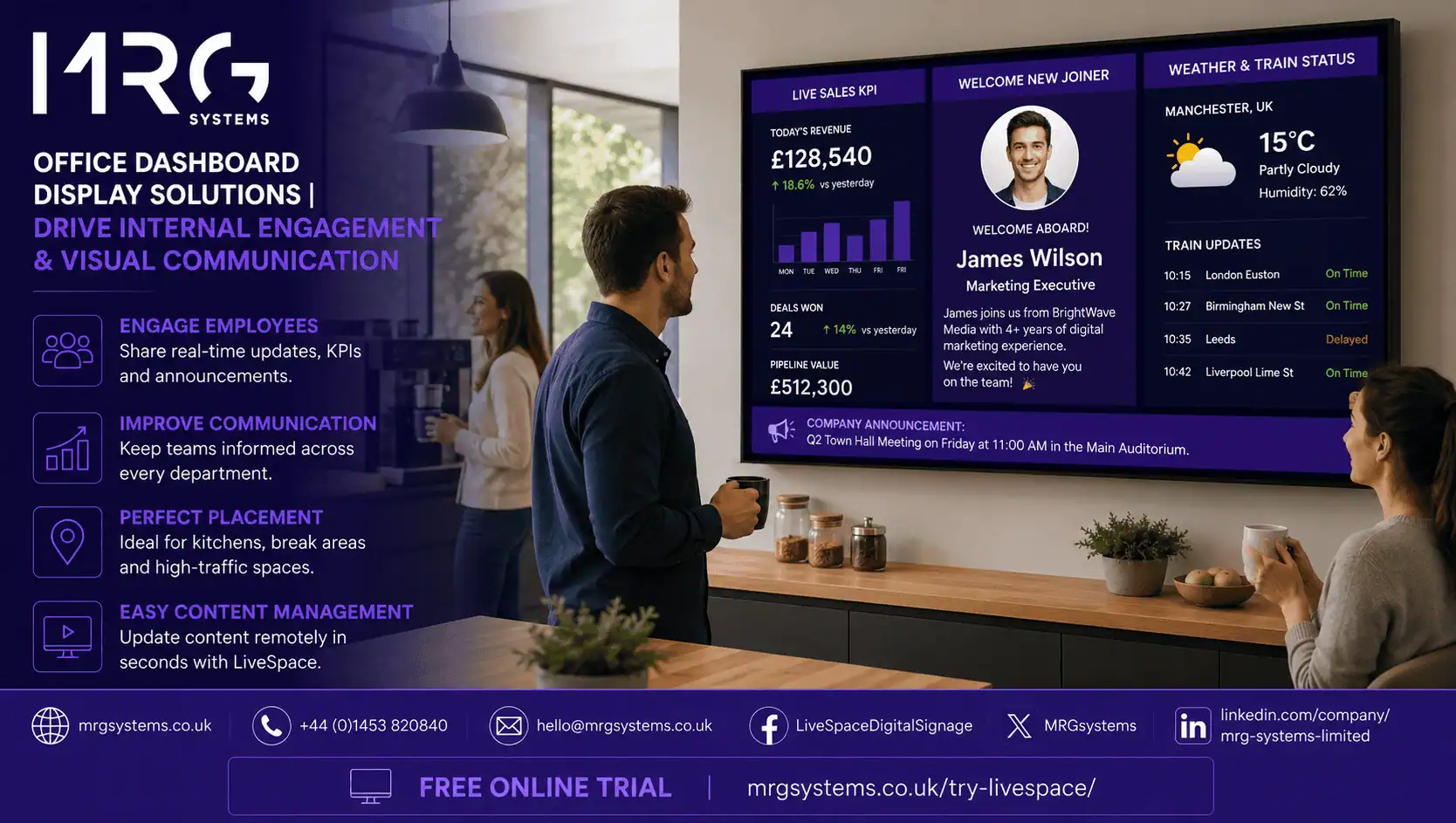
An office dashboard display solution is a set of wall screens, media players and management software that shows live information to everyone in the building: company performance, team targets, staff news, room bookings, health and safety notices and visitor welcomes. For HR and administration teams, it replaces the noticeboard that nobody reads and the all staff email that nobody opens, with something people see every time they walk to the kitchen.
This guide covers what an office dashboard display solution includes, what to show on it, where to put screens, how to manage content without it becoming another job, and what it costs in the UK. MRG Systems has installed office screen systems for organisations ranging from small professional firms to large public bodies, and the guidance below reflects what works in practice.
At its simplest, it is three things working together.
• Screens: commercial displays mounted on walls in reception, open plan areas, meeting rooms, kitchens and corridors.
• Media players: small devices (or built in players inside the screen) that receive content and show it.
• Digital signage software: a browser based console where an administrator decides what each screen shows and when.
The “dashboard” part refers to live data. Rather than only showing static posters, the screens pull numbers from the systems the business already uses: the CRM, the finance package, the HR platform, the helpdesk, Power BI or Google Sheets. The result is a screen that is always current without anyone updating it by hand.
Internal communication is one of the hardest jobs in any office. Messages compete with email, chat, and a hundred other distractions. Screens have a simple advantage: they are in the physical space where people already are, and they do not require anyone to click anything.
HR teams use office dashboard display solutions to:
• Welcome new starters by name and introduce them to the wider team.
• Show open vacancies and encourage referrals.
• Remind staff about benefits, wellbeing programmes and training dates.
• Recognise long service, birthdays and achievements.
• Reinforce safety, fire drill and first aid information.
Administration and facilities teams use the same screens to:
• Show meeting room availability and bookings.
• Display visitor welcomes in reception.
• Post travel updates, weather and local information.
• Communicate building notices such as maintenance or parking changes.
Because the same digital signage solutions carry live business dashboards as well, the screens hold people’s attention. A KPI chart next to a photo of the new starter gets both of them noticed.
Thinking about screens for your office? Fill in the short enquiry form and we will arrange a free site visit and demo.
Sales against target, customer satisfaction scores, project milestones, support ticket volumes and cash collected are common choices. Keep it to a few numbers per screen, and make sure each figure has an obvious owner.
New starters, leavers, anniversaries, birthdays, team photos, charity fundraising totals and internal awards. This content does more for engagement than most HR teams expect, because it is seen by everyone rather than a few people who open the intranet.
Room bookings, the day’s visitors, fire wardens on duty, IT service status, the weather and travel disruption. This is the content that makes people look at the screen every day, which in turn means they see everything else.
Offices with a staff restaurant or café often use the same system for Digital Menu Boards, showing today’s options, prices and allergen information. Digital Menu Boards are simple to update from the same console as the rest of the screens, so the catering team does not need a separate system.
In reception and meeting areas, interactive digital signage lets visitors sign in, find a room or read a company overview. Interactive digital signage is also useful for wayfinding in larger buildings, where a touch screen map saves the reception team from giving the same directions all day.
Placement decides whether a screen is noticed or ignored. The best locations in most offices are:
• Reception, facing the entrance, for visitor welcomes and the company overview.
• Kitchens and break areas, where people stand still for a few minutes.
• The end of open plan areas, visible from desks, for team KPIs.
• Outside meeting rooms, for booking status.
• Lift lobbies and stairwells, where people wait or pass frequently.
Avoid placing screens where they face windows (glare makes them unreadable) or in corridors people rush through without pausing.
The most common reason office screen projects fade is that content management lands on one person who already has a full workload. A well planned office dashboard display solution avoids this in three ways.
1. Live data updates itself. Dashboards, room bookings, weather and news feeds need no manual input once set up.
2. Templates make people content quick. A new starter slide should take two minutes: add a name, a photo and a line of text.
3. Scheduling does the rest. Set content to start and stop on specific dates so nothing goes stale.
With digital signage Travel cloud software, several people in different departments can be given permission to update their own content, while an administrator keeps overall control. This spreads the effort and keeps the screens fresh.
Organisations with several offices benefit most from central management. Digital signage cloud software lets a head office team publish company wide messages to every screen, while each site adds its own local content. Screen status is visible from one console, so an offline screen in another city is noticed and fixed without a phone call.
An office dashboard display solution is priced on the number of screens, the type of screens (standard commercial displays, large format, touch), the media players and the software subscription. Installation, cabling and support are usually quoted separately.
A single reception screen is a modest investment. A full building with ten or fifteen screens is more, but the per screen cost falls as the number rises. It is worth asking for a proposal that shows the total over three years, including support, so that the comparison between suppliers is fair.
Want a clear, itemised quote for your office? Complete the form and we will send a written proposal within a few working days.
• Ask whether they supply and install the hardware as well as the software. One point of contact avoids blame between companies when something goes wrong.
• Check that the digital signage software connects to your existing tools, particularly your HR platform, room booking system and dashboard tool.
• Ask to see the management console. If it looks complicated in the demo, it will be worse in real life.
• Confirm UK based support hours and response times in writing.
• Ask for references from organisations of a similar size.
It is a combination of wall screens, media players and management software that shows live business data and internal communications throughout an office. It typically replaces printed noticeboards and reduces reliance on all staff emails.
In most organisations HR or the office administration team owns the content, with IT supporting the hardware and network. Good software lets several people contribute content while one administrator keeps control.
Yes, if the software has connectors for those systems or can display a dashboard tool such as Power BI or Looker Studio. Sensitive data should be summarised for wall screens and shown only in appropriate areas.
No. Most office screens are view only. Interactive Airport digital signage is useful in reception and for wayfinding, but the majority of screens in a typical office do not need touch.
Yes. Digital Menu Boards run on the same platform and are updated from the same console, so catering staff can update menus without a separate system.
For a small office with a few screens, installation is usually completed in a day once the survey is done and the equipment has arrived. Larger buildings are planned in phases so that work does not disrupt staff.
The best office dashboard display solutions do two jobs at once: they make business performance visible and they make internal communication impossible to miss. For HR and admin teams, that means fewer unread emails, better informed staff and a workplace that feels more connected. Start with reception and one shared area, keep the content simple, and grow from there.
Ready to bring your office communications to life? Fill in the form below to request a free demo or a no obligation quote from MRG Systems.
URL slug: /office-dashboard-display-solutions-guide/
meta description (145 characters): A complete guide to office dashboard display solutions for HR and admin teams: what to show, where to put screens, managing content and UK costs.